A Space is a whole home screen, not a page of one. It has its own pages, dock, folders, grid and icon style, and switching to it changes every one of those at once.
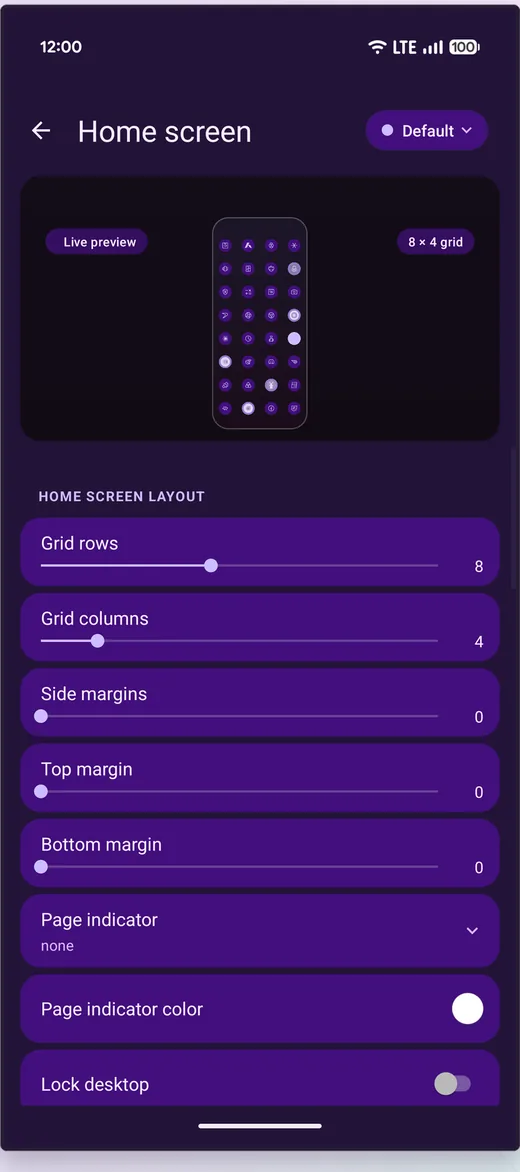
Every Space starts as a copy of the one you already like
Settings inside a Space follow your Default space until you change them there. A new Space therefore opens as an exact copy of the home screen you have already tuned, and you only touch what needs to differ — a tighter grid, a different icon shape, a dock with four apps instead of five.
Change something in Default afterwards and every Space that never overrode it follows along. Override it in one Space and that Space keeps its own value from then on.
Home screens that switch without you
This is the part no amount of manual tidying replaces. Give a Space a schedule or a trigger and Android arrives at the right home screen before you do:
- A minimal Work space that takes over on weekdays at nine
- A Bedtime space at half ten, with the noisy apps gone
- A Travel space the moment your car's Bluetooth connects
Schedules and triggers fire with the launcher closed and the screen off, so the switch has already happened by the time you unlock the phone. There is no companion app to install and no automation tool to configure — though if you already use one, Meridian's Spaces can be driven from a shortcut too.
Or switch by hand, three ways
- The switcher sheet — every Space side by side, with its name, colour and icon
- A gesture — assign "next Space", or one specific Space, to any swipe or drawn shape
- The switcher widget — a row of pills on the home screen, which can show icons alone
Each Space gets a name, a colour, and an icon you pick from any icon pack you have installed, so the switcher reads at a glance rather than as a list of words.
What is actually per-Space
| Layer | Follows Default until you change it |
|---|---|
| Pages and what is on them | Each Space has its own |
| Dock | Own apps, own size, or off entirely |
| Folders | Own |
| Grid | Own, up to 16×16 with half-cell placement |
| Icon style | Own pack, shape and size |
| Widgets | Own, including stacks |
| Wallpaper | Shared — Spaces do not carry their own wallpaper |
Building one without doing the work
Ask the assistant. "Set up a Bedtime space" creates the Space, gives it a schedule, picks a restrained set of apps, builds the dock and adds the switcher — then shows you every change it made with Undo beside it. See the assistant for how that works.